When your firm sends you a document through Knuula, you can review and electronically sign it directly in your browser — no account or software download required. Follow the steps below to complete your document.
Step 1 — Locate the email
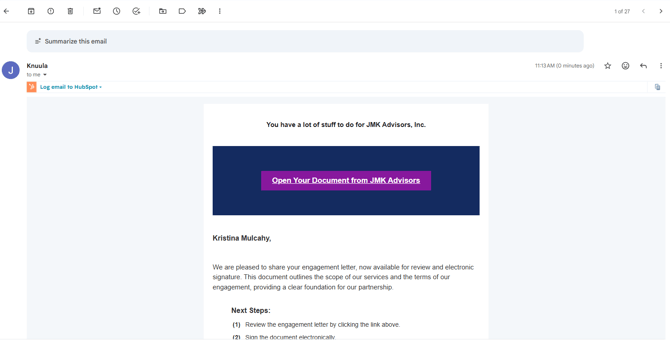
- You will receive an email from your firm containing a link to access your engagement letter.
- From the email, click Open Document to open the letter in a new browser tab. You can also view and sign your engagement letter on any phone device.
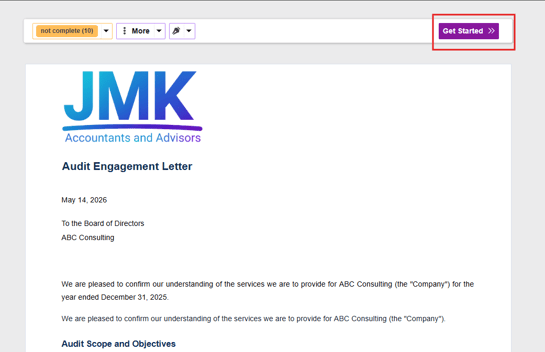
Step 2 — Click “Get Started”
- Once your engagement letter is open, click the purple Get Started » button in the top right corner of the screen to begin
- The document will advance to the first field that requires your input
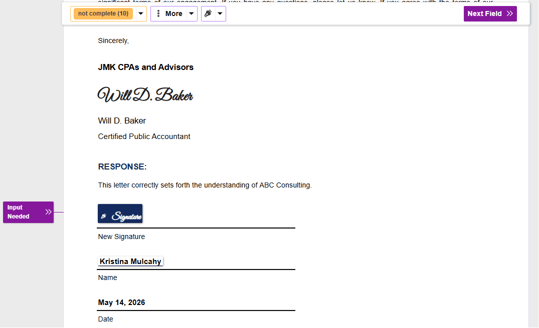
Your Signature
- First-time signers: If this is your first time, you will be prompted to set up your signature when you click into the signature field.
- Returning signers: If you have signed a Knuula document before, your signature is already saved and will be applied automatically when you click on the signature field.
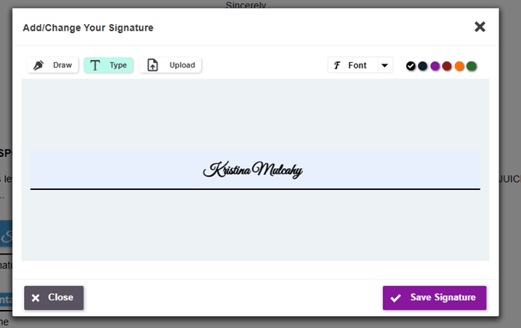
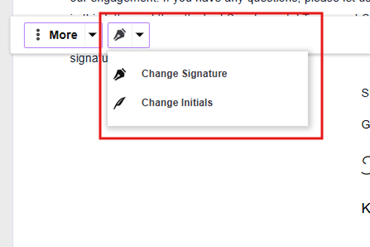
Tip: To update a saved signature at any time, click the pen icon (✎) in the top toolbar and select Change Signature from the dropdown.
Step 3 — Complete the Required Fields
- The document will highlight each field that needs to be filled in. Work through each one.
- Use the Next Field » button in the top right to move through each required field in order
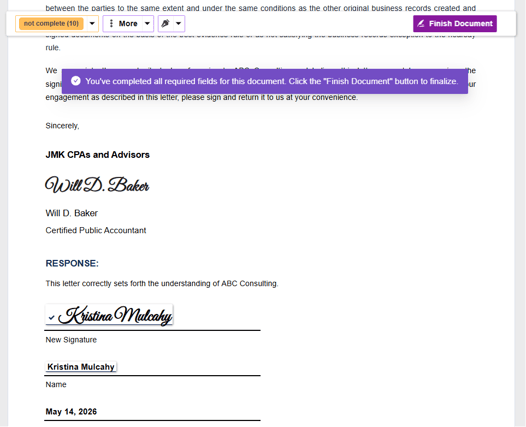
- Once all fields are complete, a purple banner will appear confirming: “You’ve completed all required fields for this document."
Step 4 — Finish the Document
- Click the purple Finish Document button in the top right corner
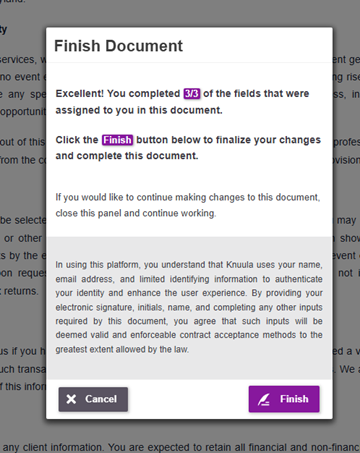
- A confirmation panel will appear
- Click the purple Finish button to finalize and submit
- Click Cancel if you need to go back and make any changes before submitting
Step 5 — Sign Other Documents
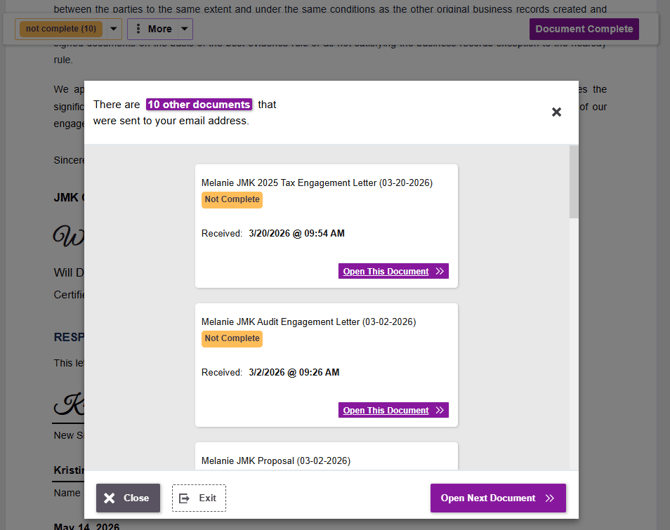
- If other documents still require your signature, a panel will appear listing each remaining document.
- Click the next document in the list to open it in a new tab.
- Repeat Steps 2–4 to complete and sign each remaining document.
- Once every document is signed, a confirmation screen will appear letting you know you're done.
Step 6 — Confirmation Email
- Once the document is finished, you will receive a confirmation email from the same firm email with the subject line: Document Finished
- The email contains a Reopen Document link you can use at any time to view or download a PDF copy of the signed letter for your records
Optional: Forward the Document to Someone Else
If someone else at your organization needs to sign the document instead of you:
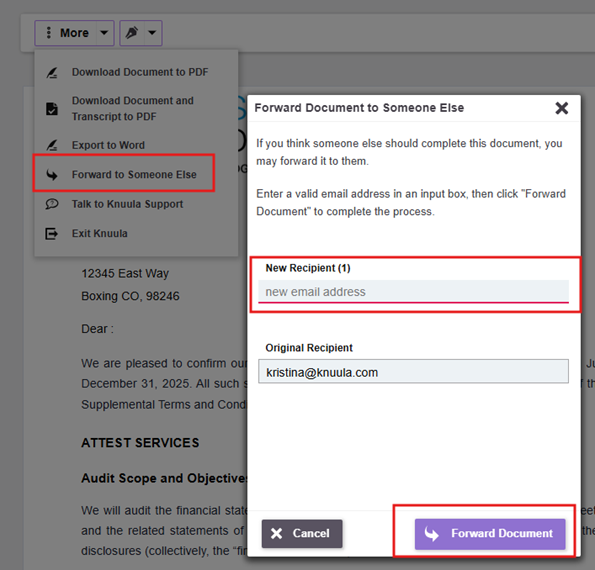
- Click the More button in the top toolbar
- Select Forward to Someone Else from the dropdown menu
- Enter the new recipient’s email address in the New Recipient field
- Click the purple Forward Document button — the document will be reassigned to the new recipient and removed from your queue