
Before You Begin — Prepare Your Spreadsheet
Build an Excel file containing your client data. You can import almost any field that has a corresponding match in Knuula, including emails, contact information, entity types, party keys, group names, and more.
Download our template: To make this step easier, we've put together a ready-to-use Excel template with all of Knuula's standard fields pre-labeled as column headers. Download the Knuula Party Import Template here and fill in your client data directly into the template.
A few best practices:
- One row per party — Each row should represent one client
- Clear column headers — Label every column with a descriptive name (e.g., "Client Name," "Contact Email," "Entity Type"). Column names don't need to exactly match Knuula's field names, but clearer labels make the mapping step much easier
- Include required fields — At minimum, your spreadsheet should include Client Name, Client ID, Contact Full Name, and Contact Email.
Step 1 — Open the Import Tool
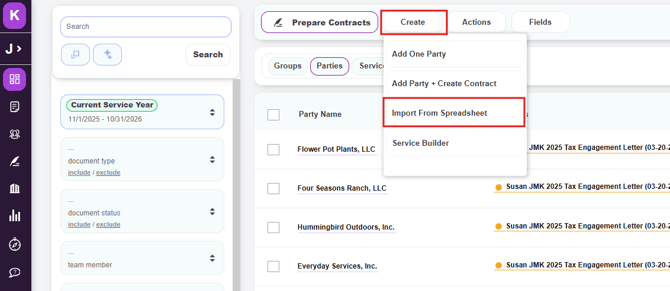
- Navigate to the Parties Page
- Click the Create button in the top navigation bar
- From the dropdown, select Import From Spreadsheet
Step 2 — Upload Your Spreadsheet
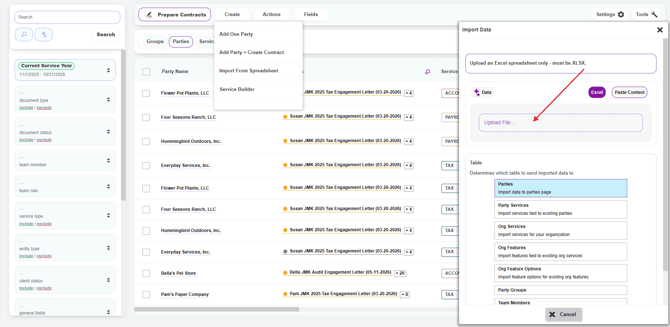
- The Import Data panel will slide out on the right side of the screen
- Upload your Excel file by clicking the upload area or dragging your file into it
- If your file has more than one sheet, Knuula will display each sheet as a separate option. Select the worksheet that contains the data you want to import
Step 3 — Confirm the Destination and Scroll to Mapping
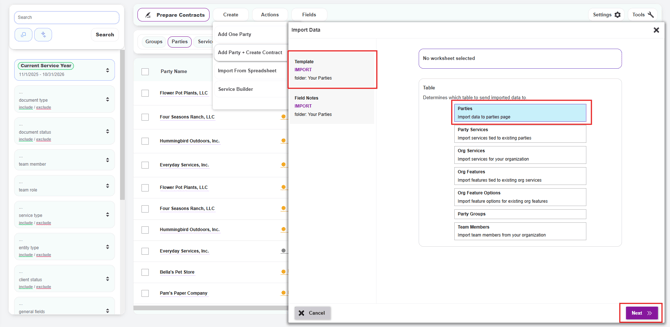
After uploading your file, you'll need to configure a few settings on the right side of the panel before you can map your columns:
- Under Table, confirm that Parties is selected (with the description "Import data to parties page"). This tells Knuula where your data should go
- Scroll down through the panel until you reach the Mapping section, where you'll connect your spreadsheet columns to Knuula's fields (see Step 4)
Note: The other table options (Party Services, Org Services, Org Features, Org Feature Options, Party Groups, Team Members) are used for importing other resource types into Knuula. Make sure Parties is selected if you're importing client party records.
Step 4 — Map Your Spreadsheet Columns to Knuula Fields
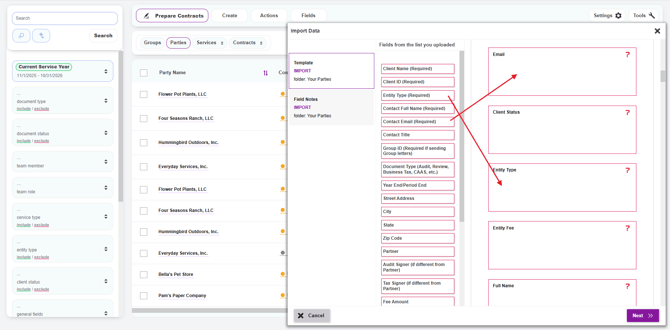
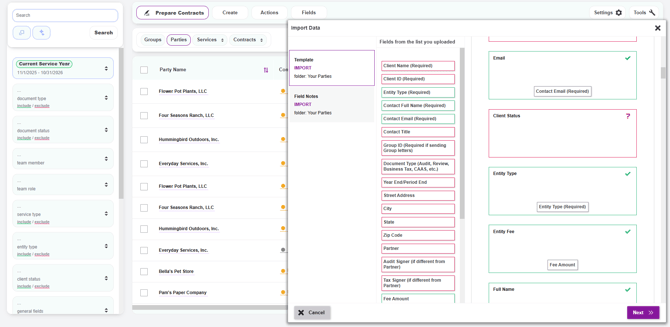
This is the most important step. You'll see two columns side by side:
- Left column ("Fields from the list you uploaded") — Displays your spreadsheet's column names
- Right column — Displays Knuula's available fields (Email, Client Status, Entity Type, Entity Fee, Full Name, and so on)
To map a column:
- Drag a spreadsheet column from the left and drop it onto the matching Knuula field on the right
- For example, drag your spreadsheet's email column onto Knuula's Email field, your entity type column onto Entity Type, and so on
- A green checkmark will appear next to each Knuula field once it has a spreadsheet column mapped to it
- Fields without a mapping will display a red question mark — these are unmapped and won't be imported
- Continue mapping until every column you want to import is connected to a Knuula field
- Click the purple Next button in the bottom right corner to continue
Tip: While column names in your spreadsheet don't have to exactly match Knuula's field names, using the same naming for both will make mapping faster and reduce the risk of dragging data into the wrong field.
Step 5 — Choose Your Import Method
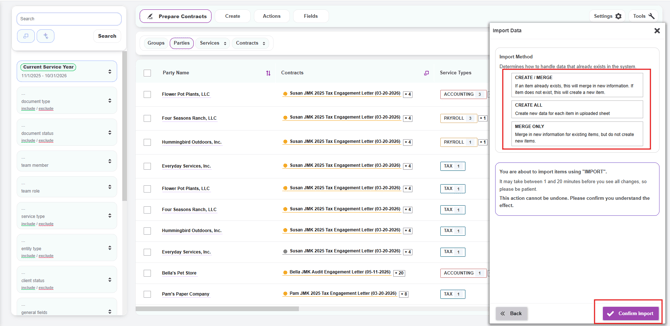
Knuula offers three import methods depending on whether you're creating new parties, updating existing ones, or both:
- Create / Merge — Use this when your file contains a mix of new and existing parties. Knuula matches on the party key (or Client ID): existing parties have their information updated, and any rows that don't match an existing party become new parties
- Create All — Use this when none of the parties in your spreadsheet exist in Knuula yet. Every row becomes a new party
- Merge Only — Use this when you only want to update information on parties that already exist. No new parties will be created from this file
Select the option that fits your scenario.
Make sure you've chosen the right import method before proceeding — there's no undo once the import completes.
Step 6 — Confirm and Run the Import
- Click the purple Confirm Import button in the bottom right corner
- Knuula will begin processing your file. Depending on the size of the import, this can take 1–20 minutes
- Once complete, your newly imported (or updated) parties will appear in the Parties list
Tip: After the import completes, refresh your browser page if you don't see the new parties right away.