
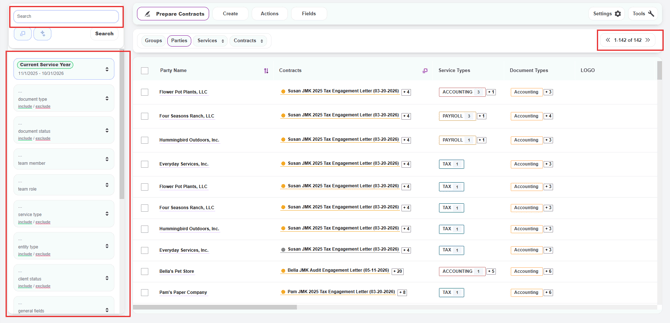
The Parties page in Knuula grows quickly as your firm adds more clients. To help you find specific parties without scrolling through hundreds of rows, the page offers a full-text search bar, an AI filtering option, and a left-side filter panel with the same categories used across Knuula.
Note: The Parties page uses the same filter panel and filtering logic as the Contracts page — so once you learn one, you can filter the other the same way. For a deeper walkthrough of the filter logic (include vs. exclude, custom periods, etc.), see How to Use Filters in Knuula. This article focuses on the search and Parties-specific workflows.
Step 1 — Open the Parties Page
- From the left sidebar, click Parties to open the Parties page
- The full client list appears in the main area, and the search bar and filter panel appear on the left side
- The result count appears at the top right of the table (e.g., "1–14 of 14")
Step 2 — Search by Name or Keyword
The fastest way to find a specific party is the Search bar at the top of the filter panel:
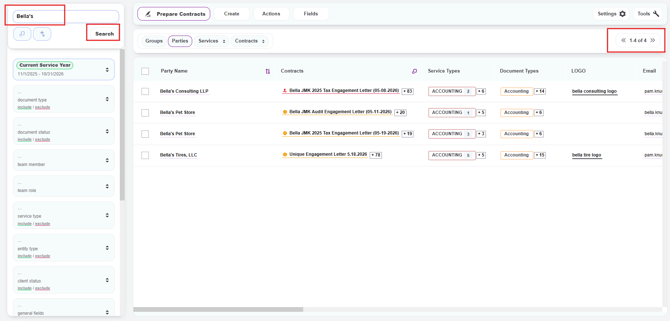
- Type a name or keyword in the Search box (you can search by client name, contact name, email, or any text tied to the party)
- Click the Search button to apply
- The result count at the top right of the table updates to show how many parties matched your query
Step 3 — Switch Search Modes (Optional)
Below the search bar, you'll see two small icon buttons that control how the page behaves:
- View menu (square icon) — Opens a menu with three options for resetting or switching the view (see Step 6 below)
- Basic Search — Standard text matching. Type a name or keyword and Knuula returns parties that contain that text
-
- AI Filtering — Describe what you're looking for in plain language (e.g., "show me all audit clients" or "clients with an Arizona address") and Knuula will translate your description into filter selections automaticallySearch mode (sparkle icon) — Lets you switch between two search modes:
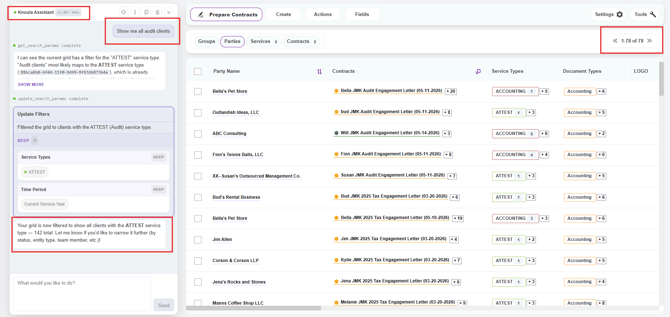
Tip: Use AI Filtering when you're not sure which filter values to pick, or when your search involves multiple criteria. For straightforward name lookups, Basic Search is faster.
Step 4 — Use the Filter Panel
Below the search bar, the filter panel has categories you can use to narrow the list further. The same standard categories from the Contracts page are available here:
- Time Period — Narrows the list to parties within a specific date range. Defaults to Current Service Year, with options for previous service years, recent months, quarters, or a custom range
- Document Type — Filter by the type of contract tied to the party (e.g., Audit, CAS, Entity Tax, ERISA)
- Team Member — Filter by a specific team member assigned to the party (such as the partner, manager, or staff)
- Team Role — Filter by team role (e.g., Partner, Manager, Staff). Often used alongside Team Member
- Service Type — Filter by the service being delivered (e.g., Tax Preparation, Audit, Advisory)
- Entity Type — Filter by the legal entity type of the party (e.g., C-Corporation, LLC, Partnership)
- Client Status — Filter by the status of the client (e.g., Active, Inactive)
Your firm may also have additional custom filters beyond these standards.
Tip: The most common filters used on the Parties page are Document Type, Team Member, and Entity Type — for example, "show me all my audit clients that are C-Corporations." Start with those three when narrowing your client list.
Step 5 — Include or Exclude Values
Each filter category supports both include and exclude logic:
- Click the filter row (or its chevron) to expand the list of values
- To include a value, click directly on its name. The chip turns green and the value is included in your results. You can select multiple values within the same filter
- To exclude a value, click the red X next to it. The chip turns red and parties with that value will be hidden from your results
- To deselect, click the green chip or red X again
- To clear all selections within a single filter, click the clear (N) button at the top of that filter's dropdown
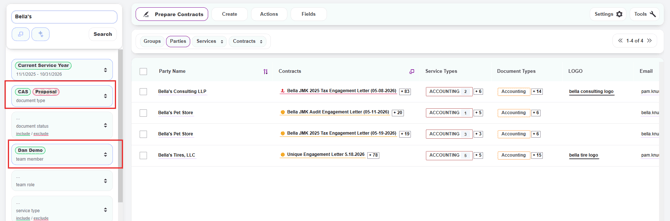
Important: After making your filter selections, click the Search button at the top of the filter panel to apply the filters and update the list of results. The list will not update automatically as you adjust filters — the Search button will highlight whenever you have unapplied changes.
Step 6 — Reset the View
To clear all filters and return to the default view, click the square icon below the search bar and select Clear Filters then click Search. This removes all applied filters and search terms in one click.
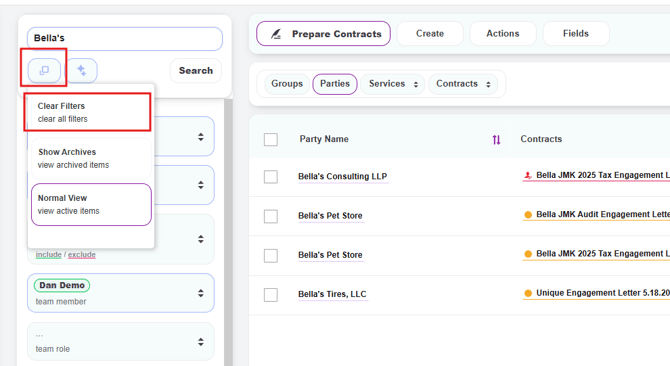
Important: Knuula remembers your filter selections across sessions, so if your Parties page looks unexpectedly empty, use Clear Filters to reset.
Step 7 — Sort and Paginate
Once your list is narrowed, you can reorder it and move between pages:
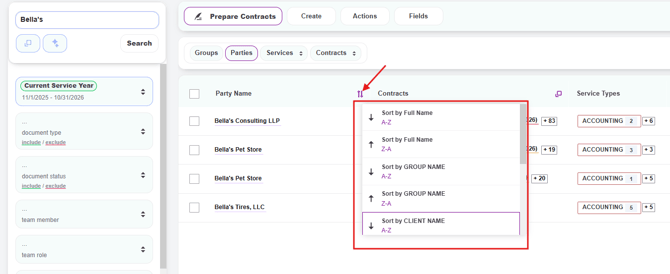
- Sort — Click the arrow next to Party Name (or any other sortable column) to reorder the table alphabetically or by that column's values
- Paginate — Use the pagination arrows next to the result count (top right of the table) to move between pages when the list is long