
You can export your parties and contracts to a spreadsheet for reporting, bulk review, or sharing with team members who don't use Knuula directly. The export includes all fields, so it's also useful for pulling consent-status reports or any other field-level data.
Note: The export process works the same way on both the Parties and Contracts pages. The only difference is the data included — a Parties export pulls client-level information (name, contact, entity type, custom fields, etc.), while a Contracts export pulls contract-level information (status, sent date, contract title, signing details, etc.).
Step 1 — Open the Page You Want to Export From
From the left sidebar:
- Click Parties if you want to export client-level data (names, emails, entity types, custom fields, etc.)
- Click Contracts if you want to export contract-level data (contract status, sent date, contract title, signing details, etc.)
The list will load on the right side of the screen.
Step 2 — Apply Filters (Optional)
Narrow your list to only the records you want to include in the export:
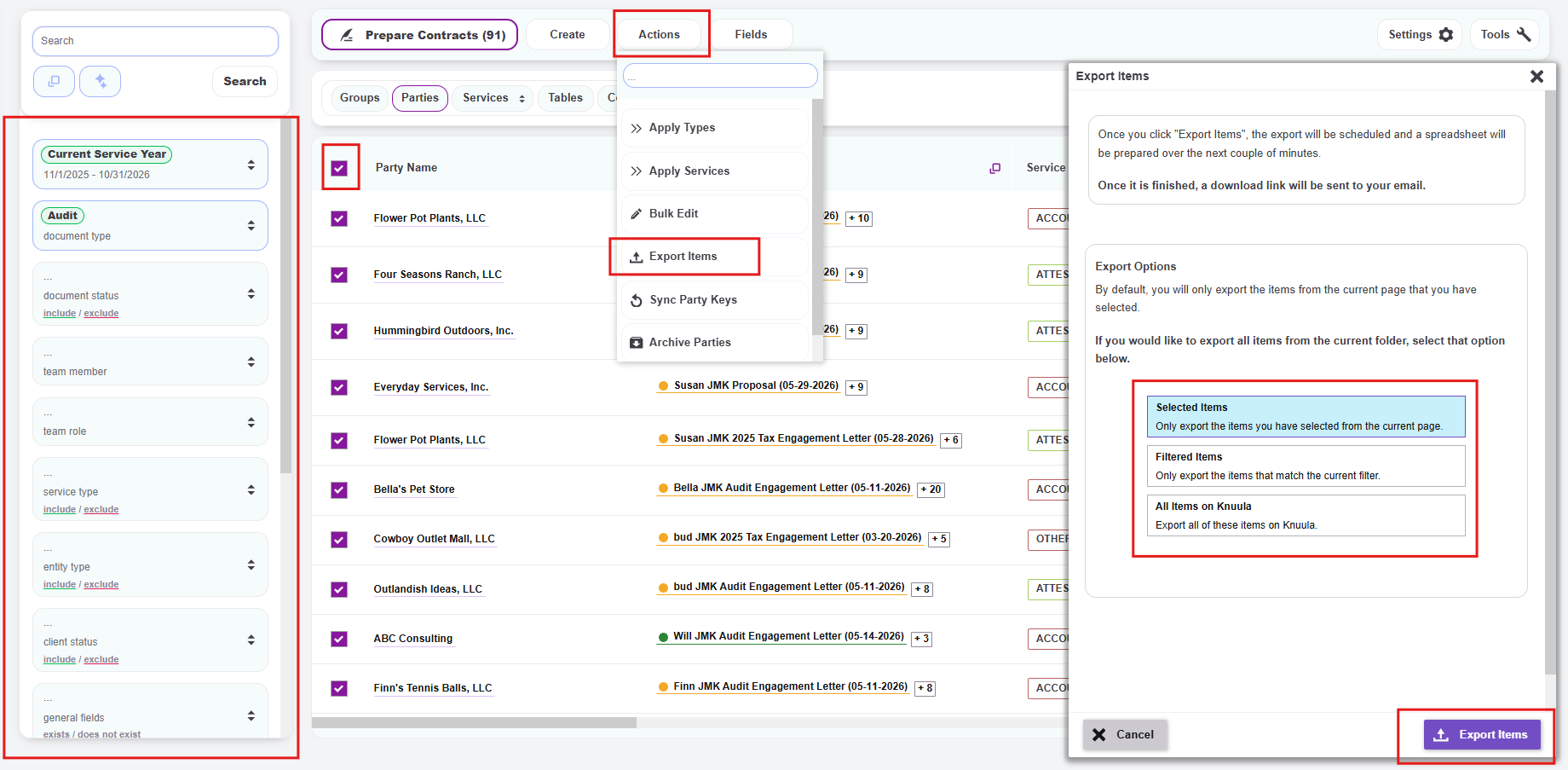
- Use the filter panel on the left to filter by document type, document status, team member, service type, or any other category
- Use the search bar to find a specific keyword or name
- Click Search to apply your filters
For a full walkthrough of filtering, see How to Use Filters in Knuula or How to Search and Filter the Parties Page.
Step 3 — Select the Records to Export
- Check the box at the top of the column header to select all visible records on the page, OR
- Check the box next to individual rows to select specific records
Step 4 — Open the Export Action
- Click the Actions button at the top of the page
- From the dropdown, select Export
- A panel will appear letting you choose which fields to include in the export:
- Choose all fields to export every available data point on the selected records
- Or check specific fields if you only need a subset (e.g., name, email, document status)
Step 5 — Run the Export and Download the File
- Click the export confirmation button to start the export
- Knuula will process the export in the background — the file is not generated instantly because larger exports take time to compile
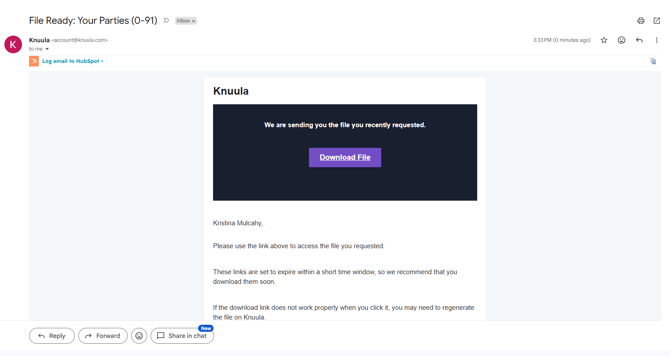
- Once the export is complete, you'll receive an email at the email address tied to your Knuula account
- The email will contain a download link for the Excel file
- Click the link to download the spreadsheet to your computer
Important: The download link is only available for a limited time. Download the file as soon as you receive the email and save it to your computer or a shared drive if you need long-term access.
Step 6 — Open and Review the Export
- Open the downloaded Excel file
- Each row represents one party or contract (depending on which page you exported from)
- Each column represents a field you selected in Step 4
- You can now sort, filter, pivot, or share the data as needed
Reporting on 7216 Consent
To report on 7216 consent, use the Parties page rather than Contracts. The Parties view lets you filter and export the exact field-level data you need.
- Go to the Parties page
- Add the applicable 7216 consent fields to your view as columns
- Filter by Document Type: Individual Tax
- Export the results following Steps 3–6 above