
There are two main ways to add a new party in Knuula: you can add a party and create a contract at the same time, or you can add a party on its own and create the contract later. Use whichever flow fits your workflow.
Option 1 — Add a Party and Create a Contract at Once
Use this option when you already know the engagement you want to create and want to handle both steps in one flow.
Step 1 — Navigate to the Parties Page
- Make sure you are on the Parties tab (not Groups, Services, or Contracts)
Step 2 — Click Create and Select "Add Party + Create Contract"
- Click the Create button in the top navigation bar
- From the dropdown, select Add Party + Create Contract
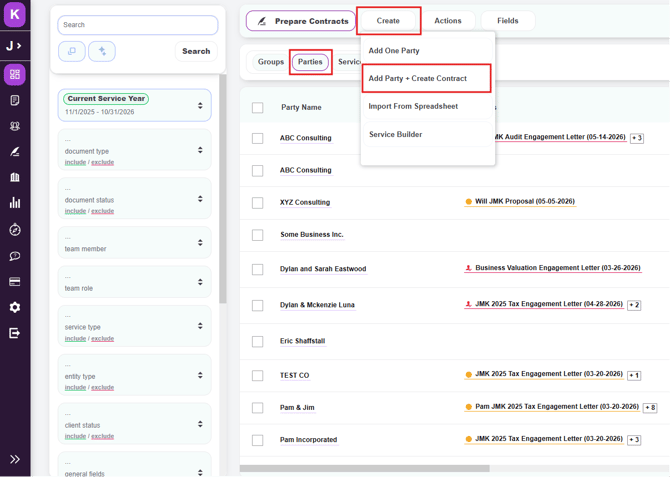
Step 3 — Select Your Template
- The template library will launch automatically
- Click directly on the template title to open the draft engagement letter
- Or, if you need to draft multiple letters for this client, check the box next to each desired template and click Preview >> in the top right corner
Step 4 — Complete the Engagement Letter
From here, follow Steps 3–7 of the article How to Create a Contract from Start to Finish to fill in client fields, assign your team, review the draft, finalize and send, and locate your finished letter.
Option 2 — Add One Party Only
Use this option when you want to create the party record without immediately drafting a contract. You can come back later to prepare an engagement letter.
Step 1 — Navigate to the Parties Page
- Make sure you are on the Parties tab (not Groups, Services, or Contracts)
Step 2 — Click Create and Select "Add One Party"
- Click the Create button in the top navigation bar
- From the dropdown, select Add One Party to create a single new party record
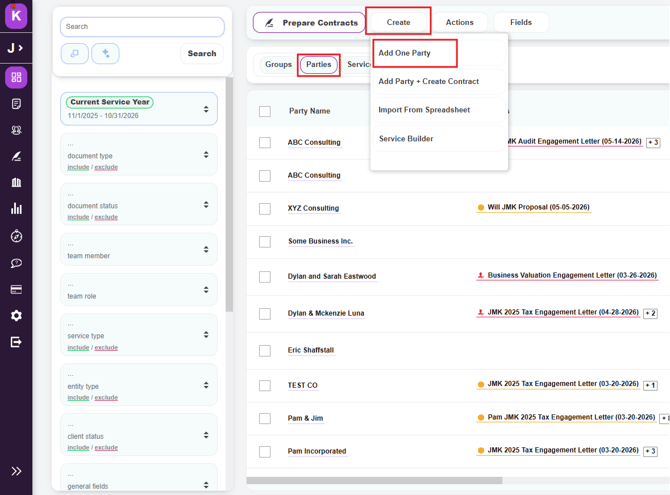
Note: The other options in the dropdown serve different purposes:
- Add Party + Create Contract — Creates a new party and immediately launches the contract builder (see Option 1 above)
- Import From Spreadsheet — Lets you upload a spreadsheet to add multiple parties at once
- Service Builder — Used to configure service types, not to add individual parties
Step 3 — Fill In the Party Information
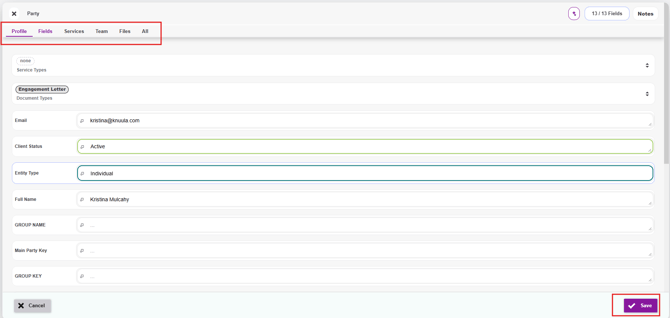
The party form will open. It is organized into six tabs across the top. Primarily focus on Profile, Fields, and Team:
- Profile: Basic party information such as party name, contact name, email address, phone number, and mailing address. This is the first tab to fill in when creating a new party.
- Fields: Custom data fields that are pulled directly into your engagement letter templates.
- Services: The catalog services attached to this specific party — in other words, the services your firm provides to this client. Each entry pulls from your firm's master Org Services catalog, but lives here as a Party Service tied to this party record.
- Team: The firm staff assigned to this party.
- Files: Where you upload external PDF attachments that will be attached to Knuula contracts for this party (e.g., supporting documents, addenda, or other files that need to accompany the engagement letter).
Step 4 — Save the New Party
- Once you have filled in the relevant fields, click the purple Save button in the bottom right corner of the form
- Click Cancel if you want to discard the entry without saving
- The new party will appear in the Parties list and is now ready for contract preparation
Tip: After saving, you can return to the party at any time to update fields, add team members, upload files, or prepare a new contract. Simply click the party name in the list to reopen the form.