
Step 1 — Switch to the Archive View
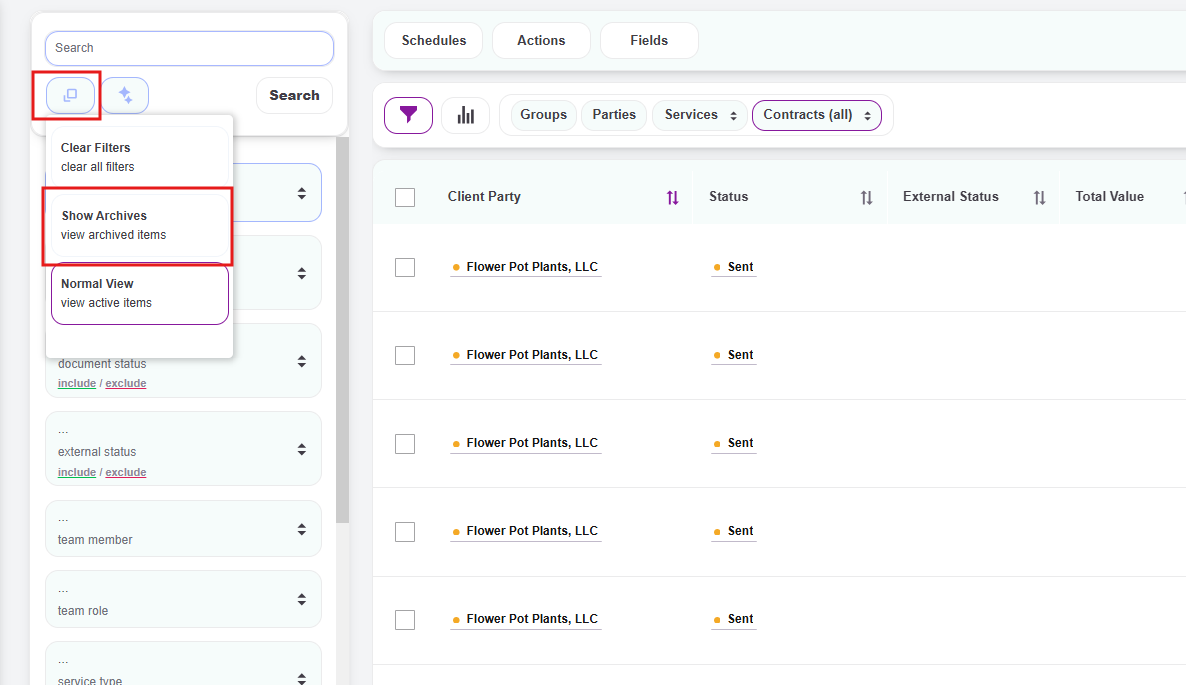
- From the Contracts page, locate the square icon below the search bar at the top of the filter panel
- Click the square icon to open a small menu with three options:
- Clear Filters — Resets all active filters
- Show Archives — Switches the view to show archived items only
- Normal View — Returns to the standard view of active items
- Click Show Archives
- Click Search
Step 2 — Identify You're in Archive View
Once you've switched to the archive view, the Status column will display Document Removed for every contract in the list. This visual cue confirms you're looking at archived items, not active ones.
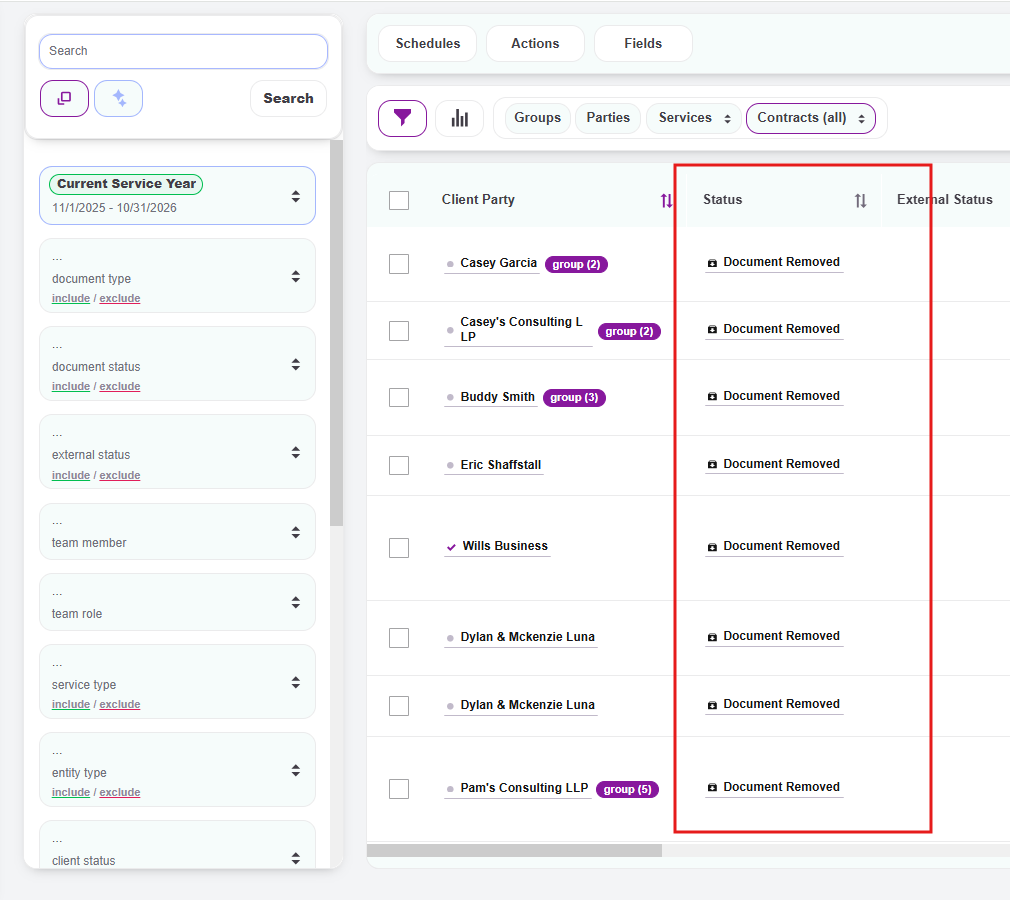
You can use the search bar and filter panel normally to find a specific archived contract — all standard filtering options (time period, document type, team member, etc.) still work in this view.
Step 3 — Take Action on an Archived Contract
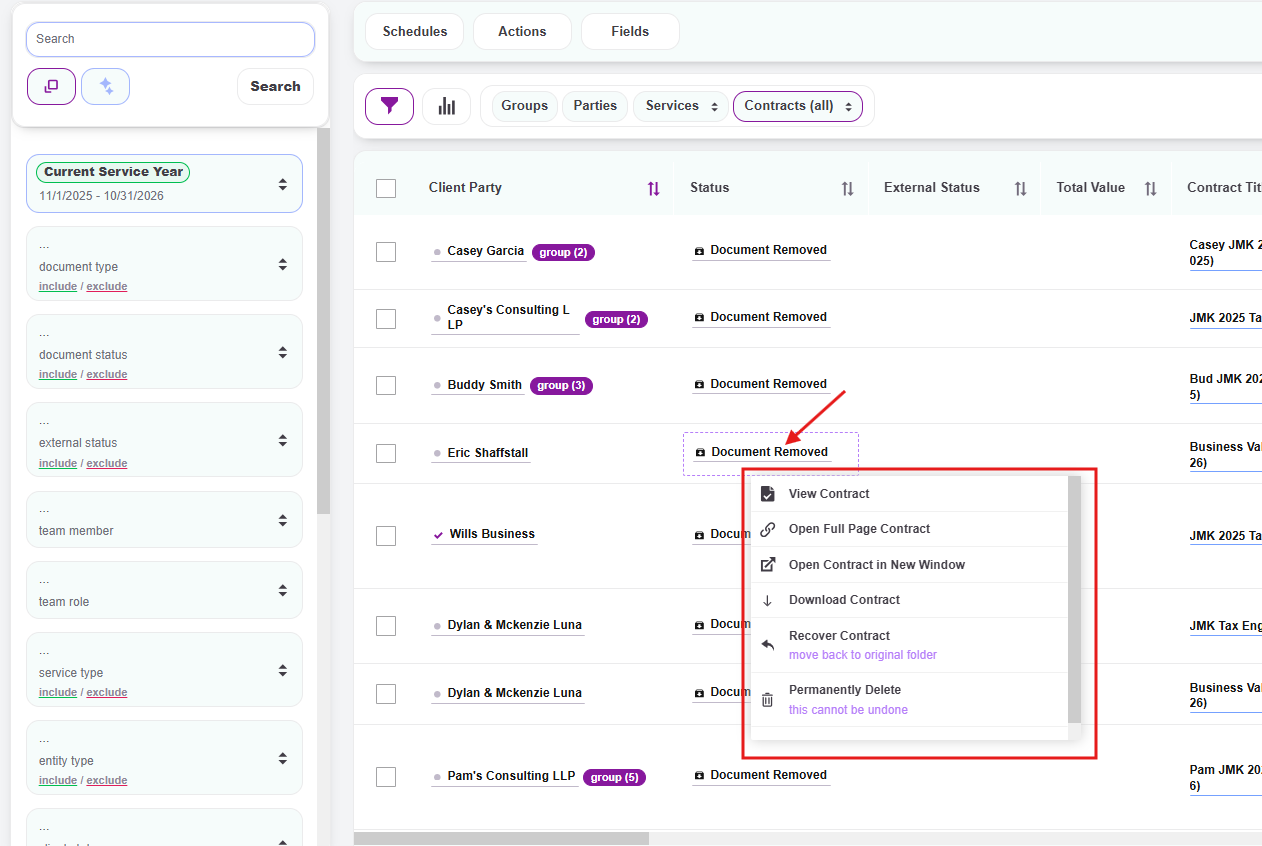
Once you've found the contract you're looking for, click the contract title to open the action menu. From here you can:
- View Contract — Opens a read-only preview of the archived contract
- Open Full Page Contract — Opens the full editor view, including the Contract Logs panel
- Open Contract in New Window — Opens the contract in a separate browser window
- Download Contract — Downloads a PDF copy to your Downloads folder
- Recover Contract — Moves the contract back to its original folder, restoring it to your active view (the subtitle reads "move back to original folder")
- Permanently Delete — Deletes the contract entirely from Knuula (the subtitle reads "this cannot be undone")
Step 4 — Recover or Permanently Delete
To recover an archived contract:
- Click Recover Contract from the action menu
- The contract will be moved back to your active view and will reappear on the Contracts page once you switch back to Normal View
To permanently delete an archived contract:
- Click Permanently Delete from the action menu
- Confirm the action when prompted
Important: Permanently deleting a contract is irreversible. Once deleted, the contract — and all its associated data, Contract Logs, and history — cannot be recovered. Use this option only when you're absolutely certain you no longer need the contract for any audit, compliance, or reference purposes.
Step 5 — Return to the Active View
To switch back to your normal view of active contracts:
- Click the square icon below the search bar again
- Select Normal View to return to the standard view of active items
- Click Search
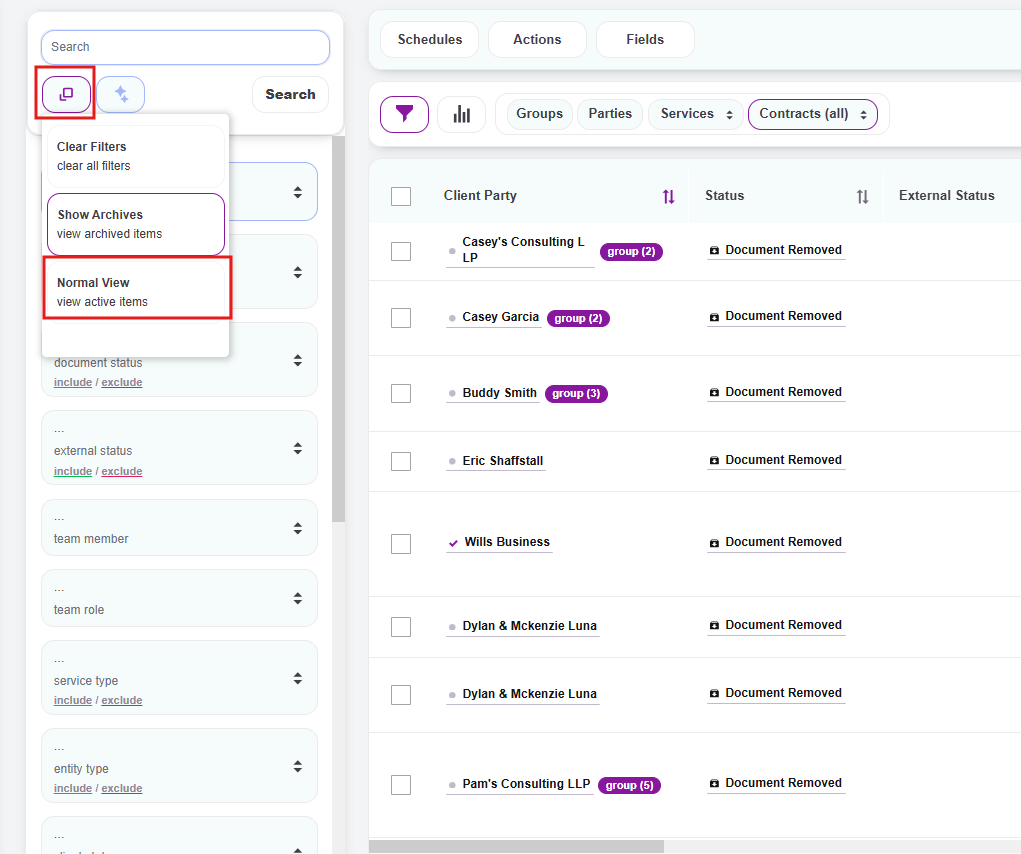
Tip: The archive view is sticky — it stays active across logins until you switch back. If your Contracts page looks empty or only shows "Document Removed," click the square icon below the search bar and select Normal View to return to active contracts.