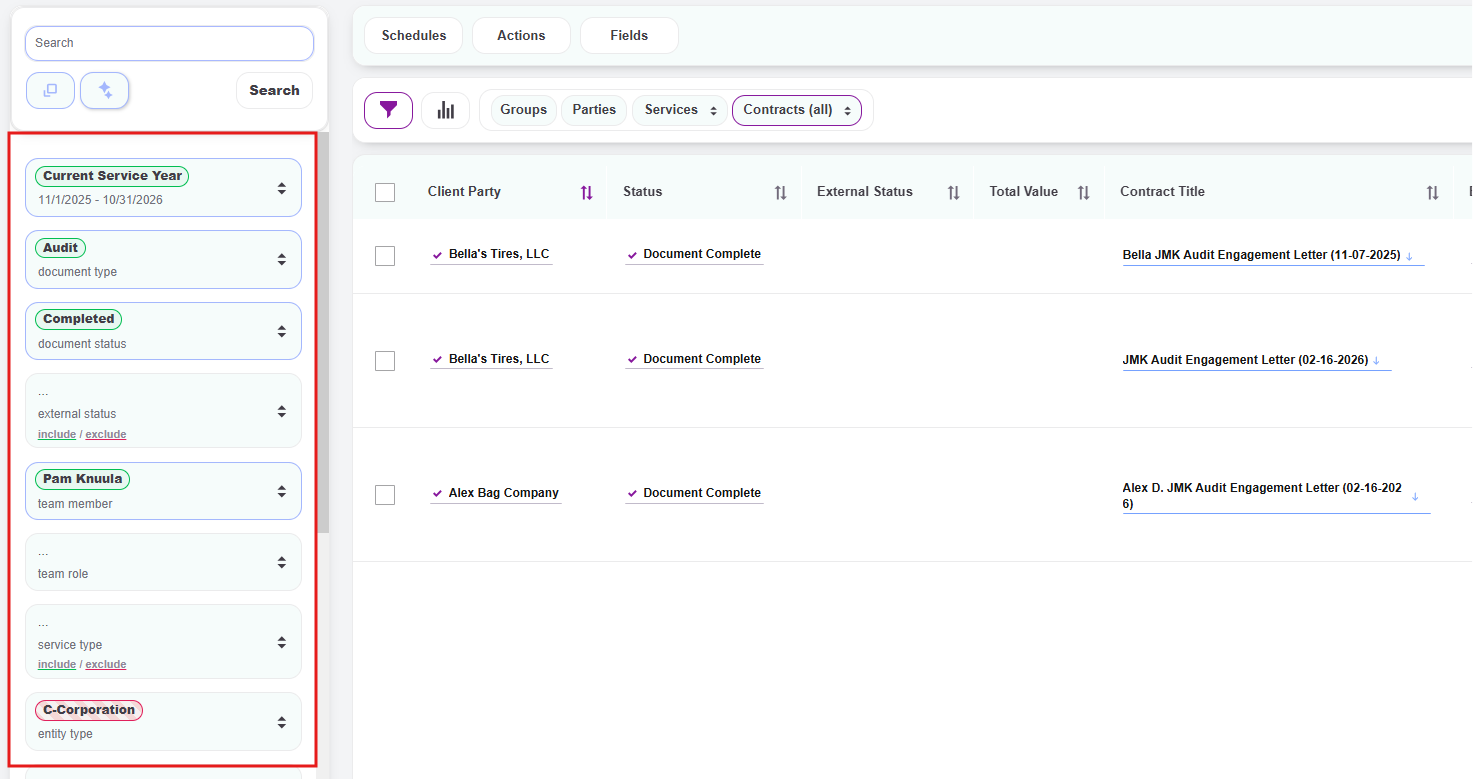
The Contracts and Parties pages in Knuula can grow quickly as your firm adds more clients and sends more engagement letters. The filter panel on the left side of each page lets you narrow your list to focus on exactly what you need.
Note: The same filter panel and filtering logic apply to both the Contracts and Parties pages, so once you learn how to filter one, you can filter the other the same way. Each firm may also have custom filter values within each category that reflect their specific document types, statuses, services, and so on.
Standard Filter Categories
The following filter categories are available on every Knuula account, stacked vertically in the filter panel:
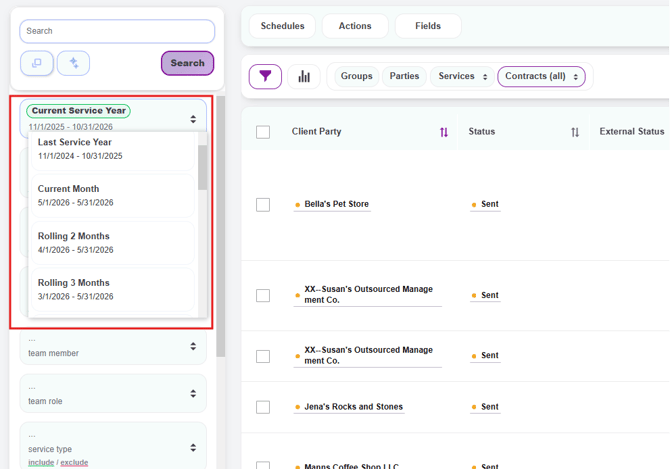
- Time Period — Narrows the list to records within a specific date range. Defaults to Current Service Year, but you can scroll through the dropdown to choose from a variety of preset ranges (such as previous service years, recent months, or quarters) or set a Custom Period with your own start and end dates
- Document Type — Filter by the type of contract (e.g., Audit, CAS, Entity Tax, ERISA)
- Document Status — Filter by where the contract is in its lifecycle (e.g., Created, Sent, Opened, Approval, Completed)
- Team Member — Filter by a specific team member assigned to the contract or party (such as the partner, manager, or staff)
- Team Role — Filter by team role (e.g., Partner, Manager, Staff, Approver). Often used alongside Team Member to narrow further
- Service Type — Filter by the service being delivered (e.g., Tax Preparation, Audit, Advisory)
- Client Status — Filter by the status of the client (e.g., Active, Inactive)
- General Fields — Filter by any custom field your firm has defined (such as entity type, year-end, or any custom client-level data)
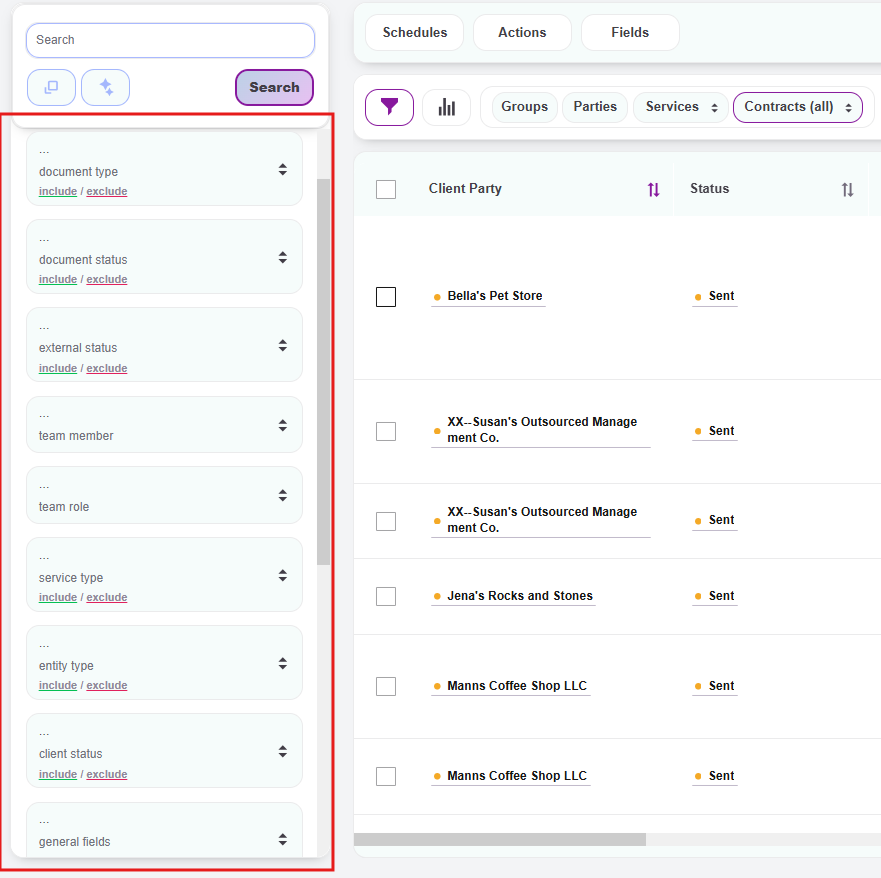
Your firm may also have additional custom filters beyond these standards that appear in the panel.
How to Include or Exclude Values
Each filter category supports both include and exclude logic:
- To include a value, click directly on its name. The chip turns green and the value will be included in your results. You can select multiple values within the same filter
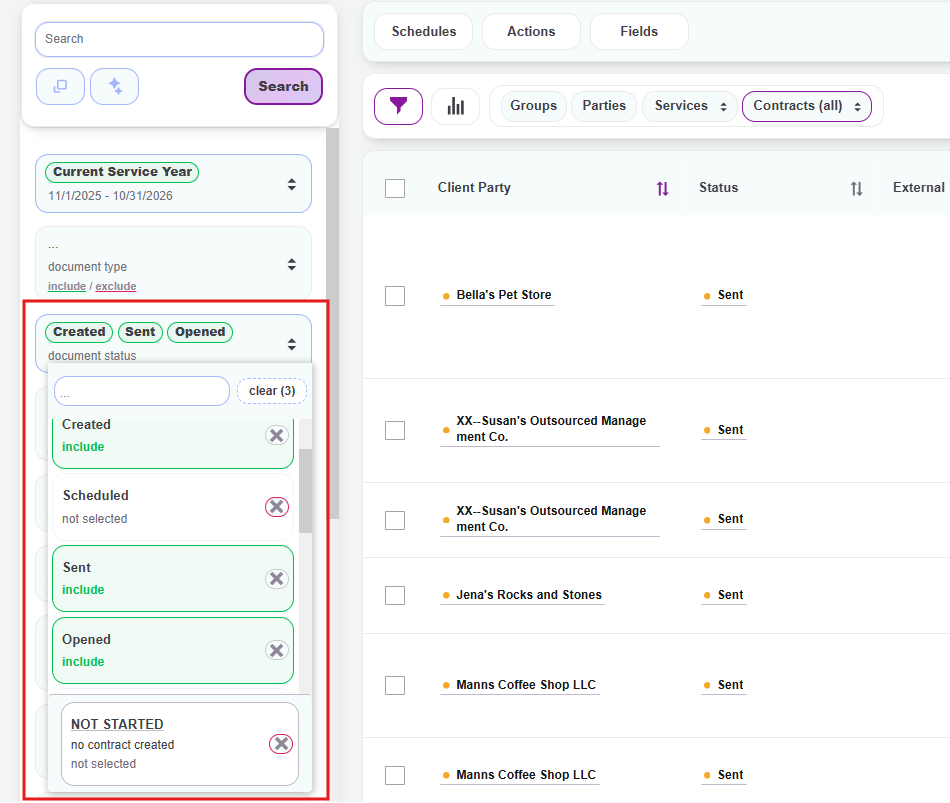
- To exclude a value, click the red X next to it. The chip turns red and records with that value will be hidden from your results
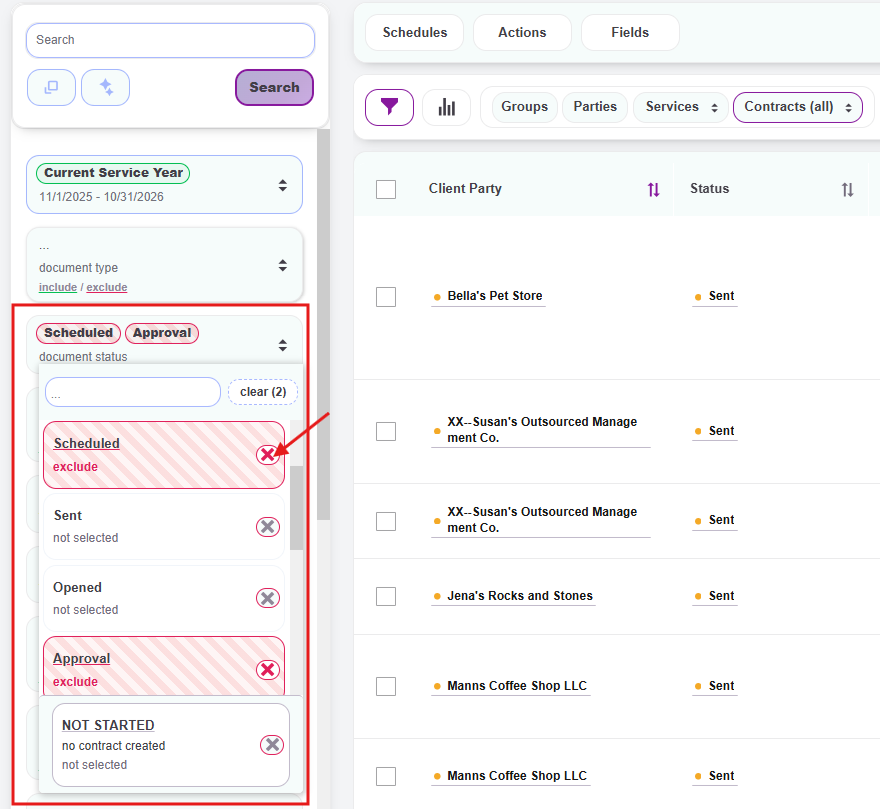
- To deselect a value, click the green chip or red X again to return it to its unselected state
- To clear all selections within a single filter at once, click the clear button at the top of that filter's dropdown (e.g., "clear (3)" if three values are selected)
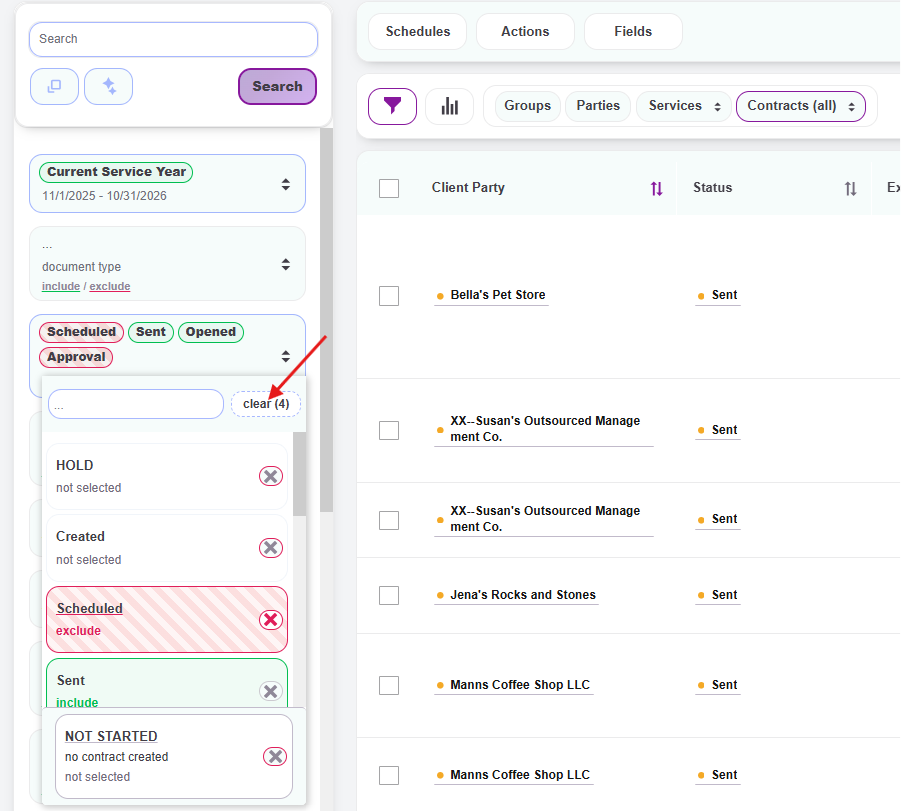
Important: After making your filter selections, click the Search button at the top of the filter panel to apply the filters and update the list of results. The list will not update automatically as you adjust filters.
How to Reset the View
To clear all filters and return to the default view, click the square icon below the search bar at the top of the filter panel. A small menu will appear with three options:
- Clear Filters — Removes all currently applied filters and resets the panel to its default state
- Show Archives — Switches the view to show archived items only (useful for finding contracts or parties that have been archived)
- Normal View — Returns to the standard view of active (non-archived) items
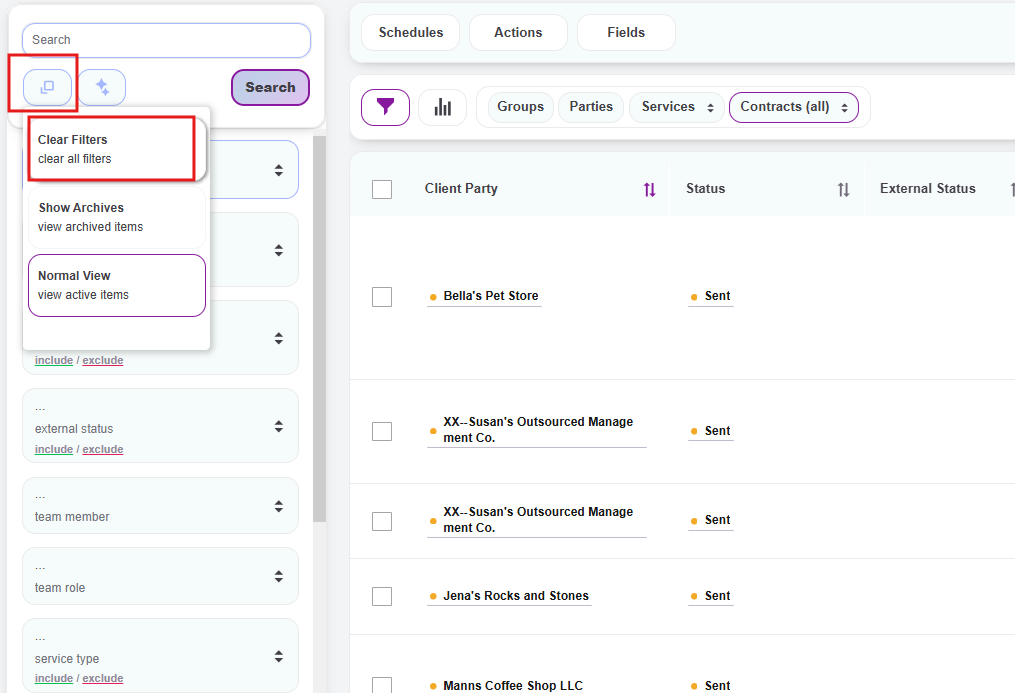
Important: Knuula remembers your filter selections, so the next time you log in or return to the Contracts or Parties page, your filters will still be applied — including the Show Archives view if you switched to it.
Combining Multiple Filters
You can apply filters across multiple categories at once to drill down further. The more filters you apply, the more focused your list becomes.