
Every Knuula user can revise client information on an engagement letter, but Edit mode is a special feature that lets you modify the permanent text of a specific letter without touching the underlying template.
Note: The Edit feature is permission-based — not every Knuula user has access by default. If you don't see the Edit button when you reach Step 2, contact Knuula support at support@knuula.com or reach out to your Knuula representative to have the feature enabled for the appropriate users at your firm.
Step 1 — Open the Contract and Click Revise Contract
The Edit feature is only available after an engagement letter has been generated — you can't access it during initial drafting.
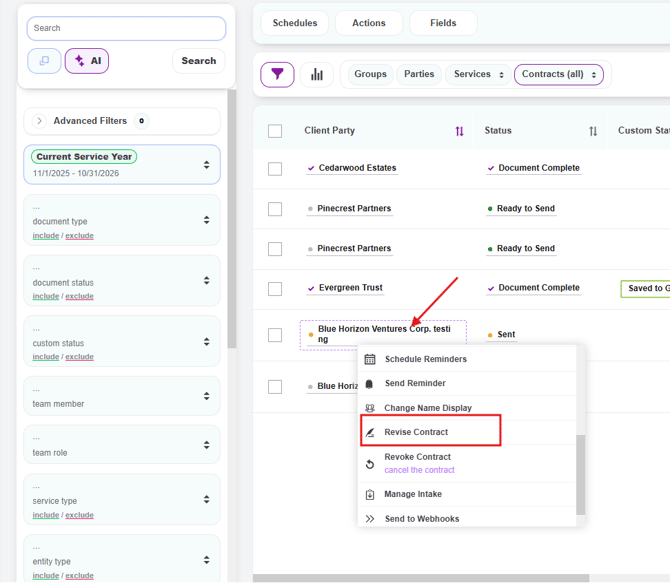
- From the Contracts page, locate the engagement letter you need to edit
- Click the contract title to open the action menu
- Select Revise Contract from the menu
Step 2 — Click the Edit Button
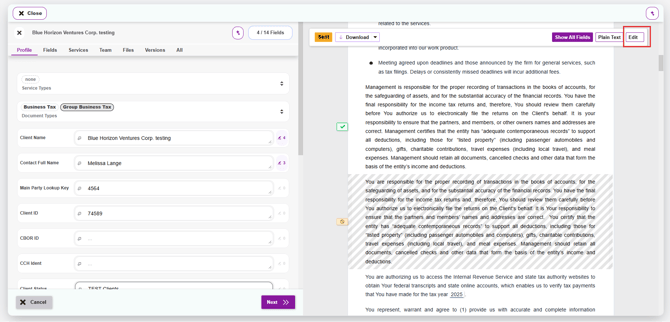
Once the letter opens in revise mode, you'll see an Edit button in the top right corner of the letter view, next to Show All Fields and Plain Text.
- Click Edit to enable text editing mode
- The letter is now editable — you can click directly into the section you want to change
Step 3 — Make Your Edits
Once you're in Edit mode, you can modify text directly and use built-in menus for structural or formatting changes:
- Click into the section that needs revision — anywhere in the body of the letter
- Make your changes just like you would in a Word document: type new text, delete unwanted phrases, or reword sentences as needed
- Right-click anywhere on the letter to open a pop-up menu with structural options
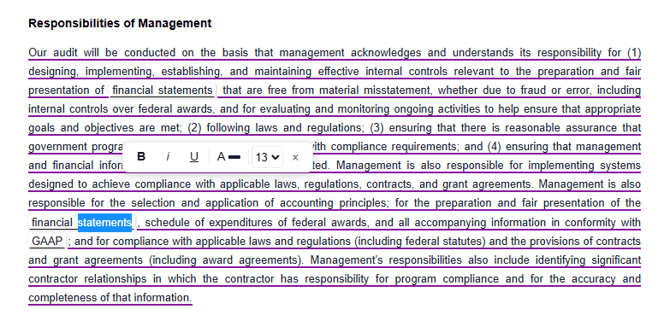
- Or Double-click on a word to open the inline formatting toolbar with options.
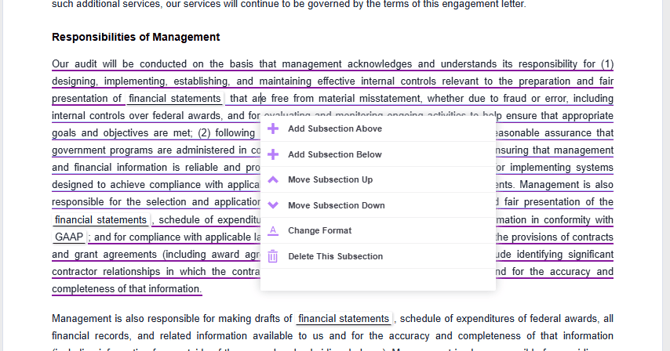
Important: Adding subsections will maintain the same format as the section you clicked over. So if you're inside a bulleted or numbered list, new subsections will inherit that format — be intentional about whether you want to build a list or a normal paragraph. Similarly, use Delete This Subsection rather than just deleting text when you need to remove an item from a list.
Step 4 — Save Your Changes
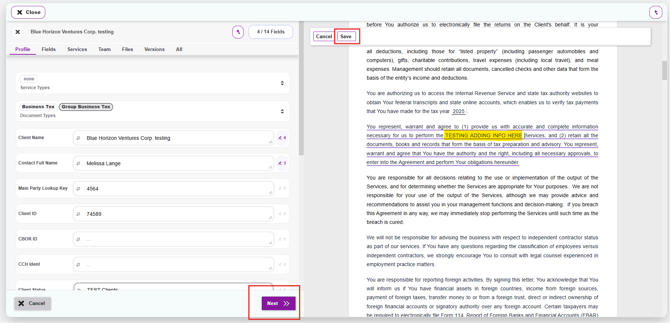
- Once you've finished editing, click Save in the top toolbar
- Then click the purple Next button at the bottom right to move into the revise confirmation flow
Step 5 — Choose How to Update the Contract
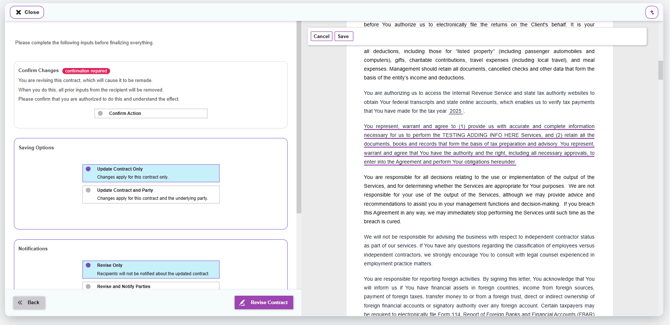
After clicking Next, a panel will appear with several options to finalize the revision:
Saving Options
When you use the Edit feature, your changes only affect the contract itself — not the underlying party record. However, the panel still displays two saving options because they apply if you also made field-level revisions (like updating client info) during this same session.
- Update Contract Only — Applies the edits to this specific contract only. This is the option to choose if you only edited permanent text, since Edit changes never carry back to the party
- Update Contract and Party — Applies the edits to this contract AND updates the underlying party record. Only choose this if you also revised field values (like a client name, email, or entity type) that should permanently update the party record
Notifications
Decide how you want to handle the client:
- Revise Only — The contract is updated but the client is not notified. Use this when you want to save the edits without re-sending the letter yet
- Revise and Notify Parties — The contract is updated AND the client is sent the revised version for signature
Click Revise Contract in the bottom right to finalize.
Tip: If you find yourself making the same edit repeatedly across multiple contracts, that's a sign the change probably belongs in the template itself. Contact your Knuula admin to update the master template so the change carries forward automatically.