
Important: If you choose to re-send the contract after updating the email, the email will go out immediately with no additional confirmation step. Make sure you've selected the correct sending option before clicking Update Emails.
Step 1 — Open the Change Emails Panel
- From the Contracts page, click the contract title (or status) for the letter you want to update
- From the action menu, select Change Email Addresses
- A Change Emails panel will slide out on the right side of the screen showing the current email(s) tied to the contract
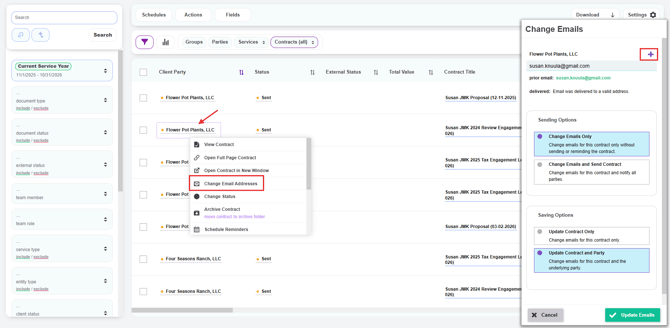
Step 2 — Review and Update the Email Addresses
The panel displays helpful context to confirm you're updating the right contract:
- Current email field — Editable field where you can type the new email address
- Prior email — Shows the previous email address for reference
- Delivery status — Indicates whether the previous email was delivered successfully (e.g., "Email was delivered to a valid address")
To make changes:
- Click the email field to edit the existing address, or type a new one in its place
- To add an additional recipient, click the purple + button in the top right corner of the panel. A new email field will appear for the additional address
- Repeat for each email you need to add or update
Step 3 — Choose a Sending Option
Under Sending Options, decide whether the contract should be re-sent after the email is changed:
- Change Emails Only — Updates the email address(es) without sending or reminding. Use this when you're correcting a typo, updating a stale email, or making changes you don't want to alert the client about
- Change Emails and Send Contract — Updates the email address(es) AND immediately notifies all parties by sending them the contract. Use this when the contract needs to be re-delivered to the new recipient (e.g., the wrong person was originally listed, or a new contact has taken over the engagement)
Step 4 — Choose a Saving Option
Under Saving Options, decide where the email change should be saved:
- Update Contract Only — Applies the email change only to this specific contract. The underlying party record stays unchanged. Use this when the change is one-time or specific to this engagement
- Update Contract and Party — Applies the email change to this contract AND updates the underlying party record. Use this when the client's email has permanently changed and should be reflected on all future contracts as well
Step 5 — Finalize the Update
- Click the purple Update Emails button in the bottom right corner to save your changes
- Click Cancel if you want to close the panel without saving
What Happens After You Update
- The contract's recipient email(s) are updated immediately
- If you selected Change Emails and Send Contract, the contract is re-sent to the new email address right away with no further confirmation
- If you selected Update Contract and Party, the underlying party record is also updated so future contracts will use the new email by default
- Reminders that are scheduled to send in the future will now go to the updated email address
Tip: When a client permanently changes their email (e.g., switched jobs or company domains), always choose Update Contract and Party. This saves you from having to manually update the email on every future contract — the next engagement letter you create will automatically use the new address.