
Step 1 — Open the Change Status Action
- From the Contracts page, click the contract title for the letter whose status you want to update
- From the action menu, select Change Status
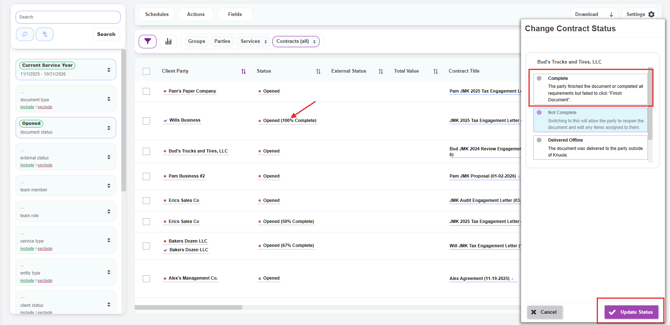
- A Change Contract Status panel will slide out on the right side of the screen, showing the contract name and a list of available status options
Step 2 — Choose the New Status
The available status options will depend on the contract's current status. Common options include:
- Complete — Marks the contract as fully complete. Use this when the party finished the document or completed all requirements but failed to click Finish Document on their end
- Not Complete — Reverts the contract to an incomplete state, allowing the party to reopen the document and edit any items assigned to them. Use this when a client needs another chance to update their information after they've already submitted
- Delivered Offline — Marks the document as delivered to the party outside of Knuula. Use this when you printed, mailed, or hand-delivered the contract instead of sending it digitally
- Additional options may appear depending on the contract's current state (e.g., Completed Offline, Sent, Opened, etc.)
Step 3 — Confirm and Update
- Click the radio button next to the status you want to apply
- Click the purple Update Status button in the bottom right corner to finalize
- Click Cancel if you want to close the panel without saving