
Step 1 — Open the Archive Action
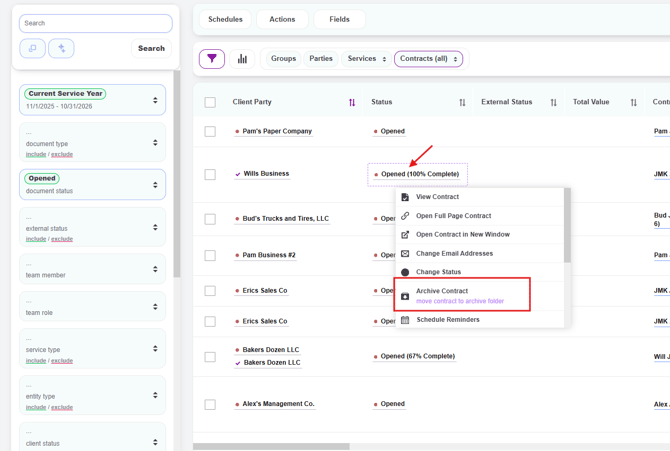
- From the Contracts page, click the contract title (or the status) for the letter you want to archive
- From the action menu, select Archive Contract — the subtitle reads "move contract to archive folder"
Step 2 — Confirm It Was Archived
Once you click Archive Contract, a green confirmation banner will appear at the top of the screen confirming the contract has been archived. The contract will no longer appear in your default Contracts page or Parties page views.
Important — Revoke Before Archiving (If the Contract Was Sent):
If the contract has already been sent to the client, revoke the contract first before archiving. This is critical because:
- Reminders will continue to send to the client until the contract is revoked, even if it's been archived
- The client can still access the contract via their original link unless it's been revoked
- Archiving alone only hides the contract from your view — it does not stop activity on the client's side
For contracts that haven't been sent yet (e.g., still in Created or Pending Approval status), you can safely archive without revoking first.
To view archived contracts or recover one back to your active view, see How to View and Recover Archived Contracts.