
When sending an engagement letter, you may want to copy additional people on the delivery — for example, a controller, business manager, internal stakeholder, or other team member at the client's organization. Knuula handles this through the field, which lets you add one or more people who will receive the contract for visibility but will not be asked to sign.
Note: CC recipients are view-only — they'll receive a copy of the contract but cannot sign, complete fields, or take any other action on the letter. Only the signing party can sign.
Step 1 — Open the Contract You're Drafting
- Begin creating the contract as you normally would (see How to Create a Contract from Start to Finish)
- From the dynamic document review screen, click on the client name or any client field in the drafted letter on the right side to open the client fields panel
Step 2 — Locate the View Only Parties Field
The CC recipient field isn't always visible by default since it's just one of many available client fields. To find it quickly:
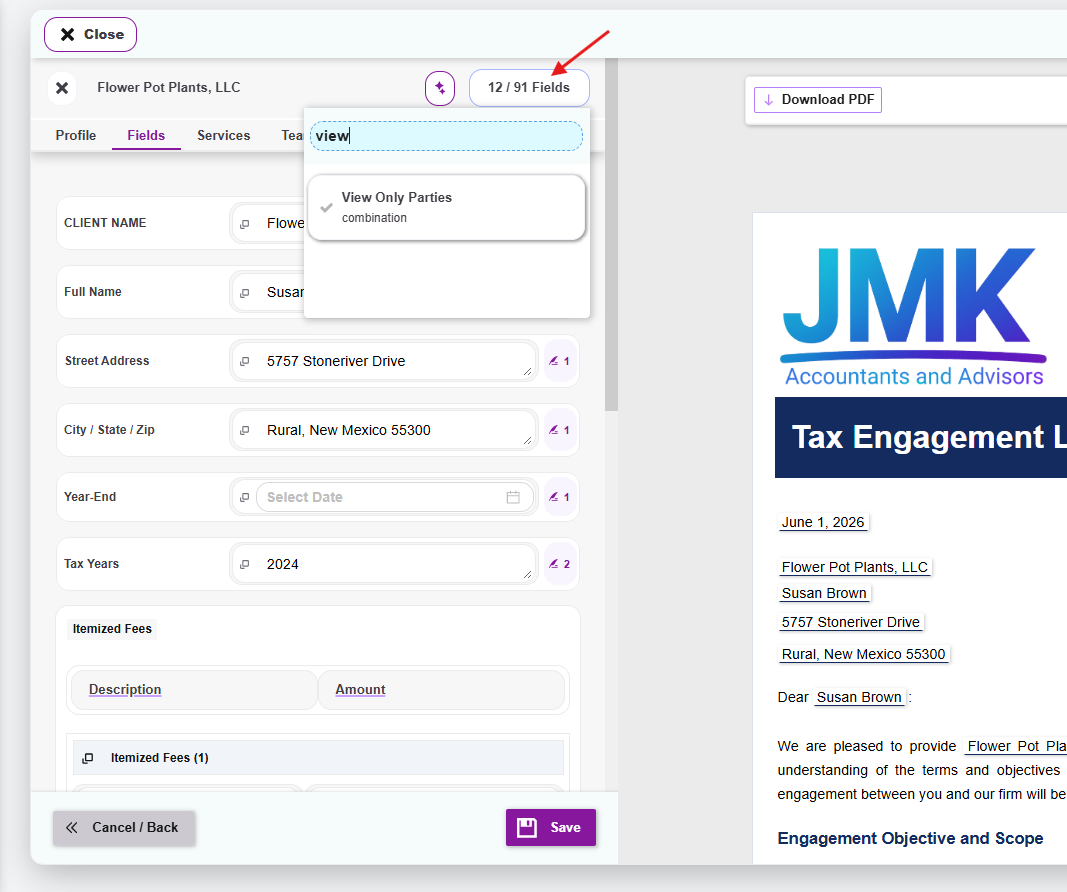
- Click the field count button in the top right corner of the field panel (e.g., 36 / 141 Fields) — this opens a search bar
- In the search bar, type cc to filter the field list
- Click on View Only Parties to add this field to the active view
The field will now appear in the client fields panel, ready to be filled in.
Important: If you don't see the View Only Parties field when you search, this means it has not been enabled for your firm's account yet. Contact Knuula support at support@knuula.com or reach out to your Knuula representative to have the field added to your account.
Step 3 — Add the First CC Recipient
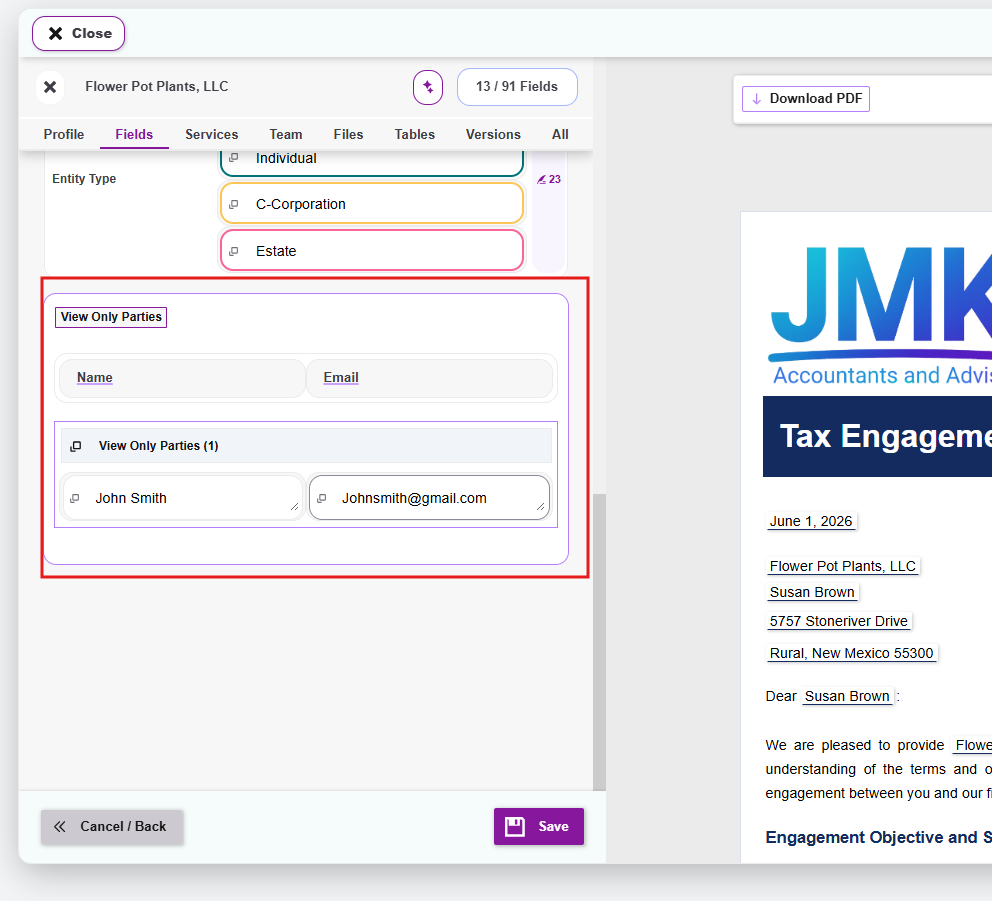
- In the Name field, type the CC recipient's full name (e.g., "John Smith")
- In the Email field, type the CC recipient's email address
- The letter on the right will update in real time to reflect the added CC recipient
Step 4 — Add Additional CC Recipients (Optional)
You can CC as many people as you'd like — there's no limit. To add additional CC recipients:
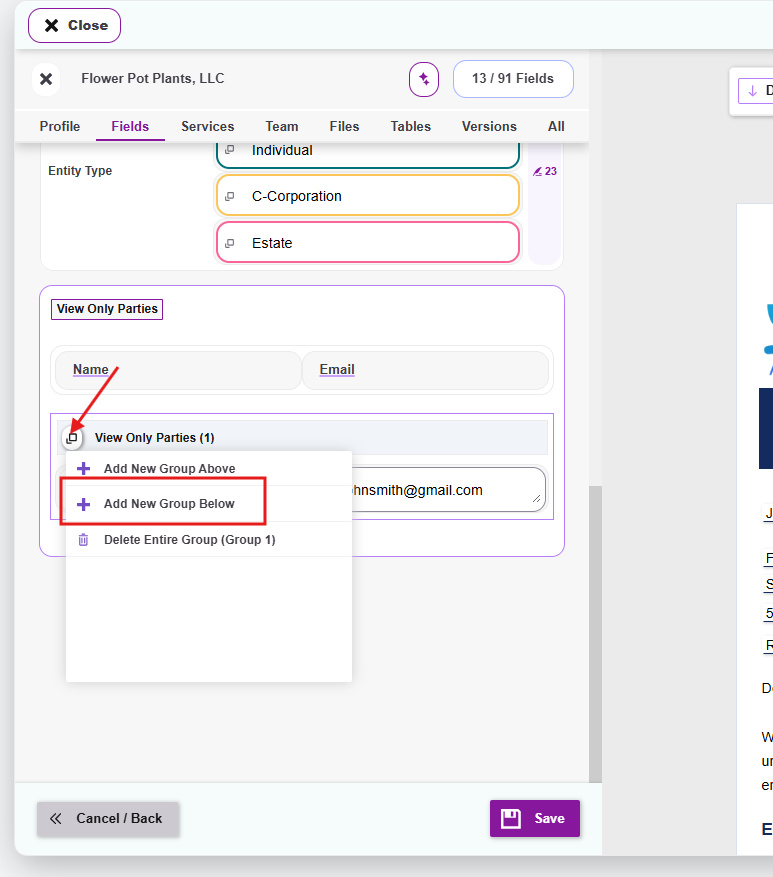
- Click the small square icon to the left of the View Only Parties (Non-Signing CC Recipients) (1) group header
- A small menu will appear with three options:
- Add New Group Above — Adds another CC recipient group above the current one
- Add New Group Below — Adds another CC recipient group below the current one
- Delete Entire Group (Group 1) — Removes the entire group
- Click Add New Group Below (or Above, depending on the order you want)
- A new set of Name and Email fields will appear (labeled View Only Parties (2))
- Fill in the new CC recipient's name and email
- Repeat for each additional CC recipient
Step 5 — Finalize and Send
Once all CC recipients have been added:
- Continue preparing the rest of the contract (other client fields, team assignments, etc.)
- Review the draft to confirm all CC recipients appear correctly
- Click Finalize to send the contract
- The signing party will receive the contract for signature, and each CC recipient will receive a copy for visibility
Please note: If you forgot to add a View-Only recipient before sending, you cannot add them retroactively. Revoke the contract, add the field, and recreate it.