
Note: All attachments are tied to a party first. This means an attachment must be uploaded to the party's record before it can be selected for a specific contract. There are two ways to upload the attachment — from the Parties page directly, or from inside the contract editor while you're drafting — but in both cases, the file ultimately lives on the party.
Only PDF files are supported — other file types (e.g., Word documents, images, Excel files) cannot be uploaded as attachments.
Please note: If you don't see the Attachemnts option in your account, contact support at support@knuula.com or reach out to your Knuula rep to get it enabled.
Step 1 — Upload the Attachment to the Party
There are two ways to upload an attachment to a party. Choose whichever fits your workflow:
Option A — From the Parties Page
- Navigate to the Parties page
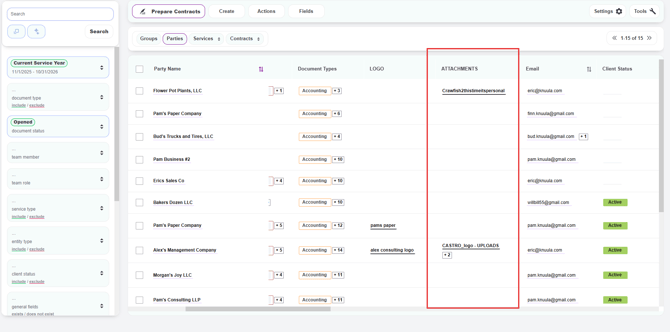
- Locate the Attachments column
- Locate the row for the party you want to add the file to
- Drag and drop the file directly into the attachment field for that party, or click the field to browse and upload
- The file now lives on the party record and is available to be selected for any contract created for that client
Option B — From the Contract Editor
Use this method when you're already drafting a contract and need to add an attachment specific to this engagement.
- Begin creating the contract as you normally would (see How to Create a Contract from Start to Finish)
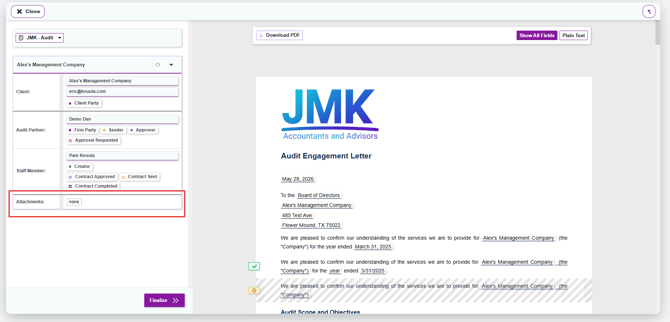
- Look at the summary panel on the left side of the contract editor
- At the bottom of the panel you'll see the Attachments section. If none have been added, the field will display none
- Click directly on none to open the attachment management window
- From the attachment window, drag and drop the file into the upload area, or click to browse and select a file from your computer
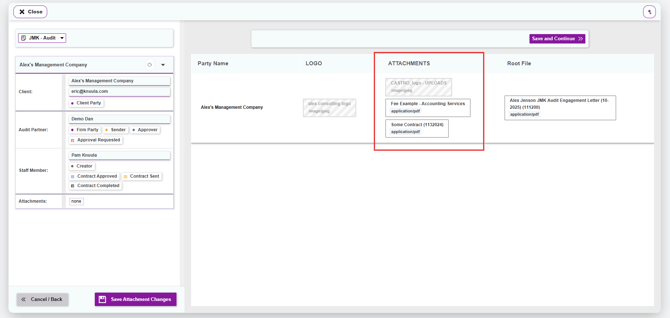
- The file is now uploaded to the underlying party and available to select for this contract (see Step 2 to select it for inclusion in the letter)
Step 2 — Select the Attachment for the Contract
Uploading the file to the party is only half the workflow. To actually include the attachment in a specific letter, you need to select it from the available attachments for that party.
- While drafting the contract, open the attachment management screen (accessible from the summary panel on the left side of the contract editor)
- You'll see the party's available attachments listed under the Attachments column, along with any logos or root files for that party
- Click on the attachment you want to include in this contract. The attachment row will be outlined in green to indicate it's selected
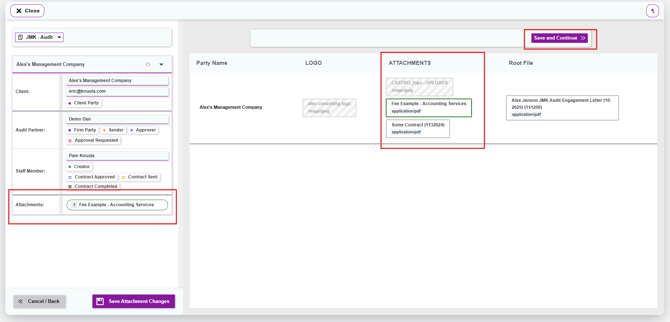
- The Attachments row in the summary panel on the left will update to show the selected file (e.g., "1 Fee Example - Accounting Services")
- Click the purple Save and Continue button in the top right to lock in your selection
Tip: You can select multiple attachments at once if the contract needs more than one supporting document. Each selected attachment will be outlined in green and counted in the Attachments row of the summary panel.
Step 3 — Verify the Attachment Appears in the Letter
After selecting the attachment, scroll to the bottom of the contract preview on the right side of the editor. The attachment will appear as a separate document at the end of the letter, labeled with a PDF Preview indicator.
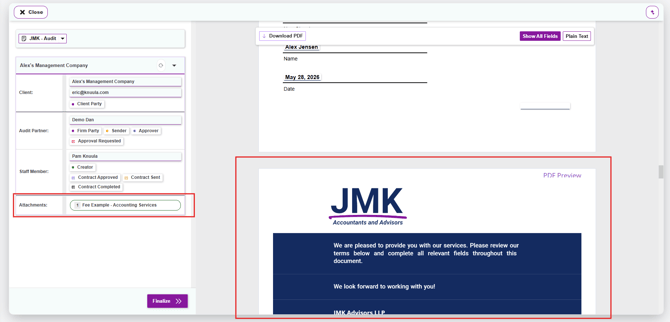
This is exactly how the attachment will appear when the client receives the contract — as the final document in the package.
Step 4 — Finalize and Send
Once you've confirmed the attachment looks correct:
- Continue preparing the rest of the contract (client fields, team assignments, review, etc.)
- Click Finalize to send the contract to the client
- The attachment is delivered as part of the contract package and the client will be able to view and download it alongside the main letter
Important Notes About Attachments
- Attachments are delivered with the contract — Confirm the file is the correct version before finalizing. The client will see whatever you've selected
- To replace an attachment after sending — You'll need to revoke the contract and recreate it. There's no way to swap an attachment on an already-sent contract
- Attachments stay with the party — Even if you remove an attachment from one contract, the file remains uploaded to the party and can be selected for future contracts
- Attachments display order — Attachments always appear at the end of the letter, in the order they were selected
- To delete an attachment from a party — Attachments live on the party record, not the contract. To remove one: from the Parties page, click Manage Party for the relevant party, switch to the Files tab at the top, click the attachment name to open its details pop-up, then click Delete File to permanently remove it.
- Bulk upload isn't supported — Knuula doesn't currently support uploading the same attachment to multiple parties in a single action. The most efficient workaround is to drag and drop the same file onto the Attachments column for each party from the Parties page, one at a time.