
If a field you need — like Client ID — isn't currently visible in your list view, you can enable it so it displays as a column across the top of the table.
- Open the page where you'd like the field to appear (for example, the Parties or Contracts page).
- Click the "Fields" button at the top of the screen.
- Find the field you're looking for (for example, Client ID) in the list of available fields and select that field.
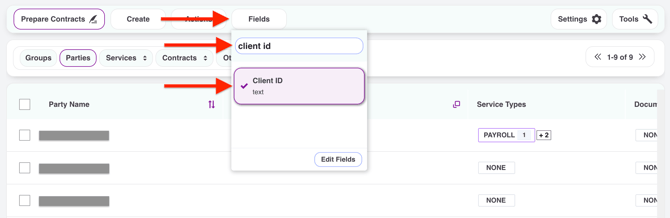
- Once you select the field from the list hit search again. The field now appears as a new column at the top of the table.
- If you don't see it right away, scroll horizontally as it may be off screen.
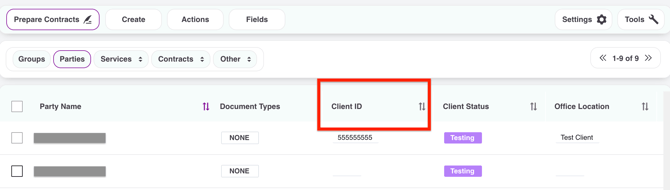
Please note: Fields can only be enabled to display as columns — they can't be placed in a fixed or custom position on the screen.